
Transcribe Google Meet Calls in Real Time
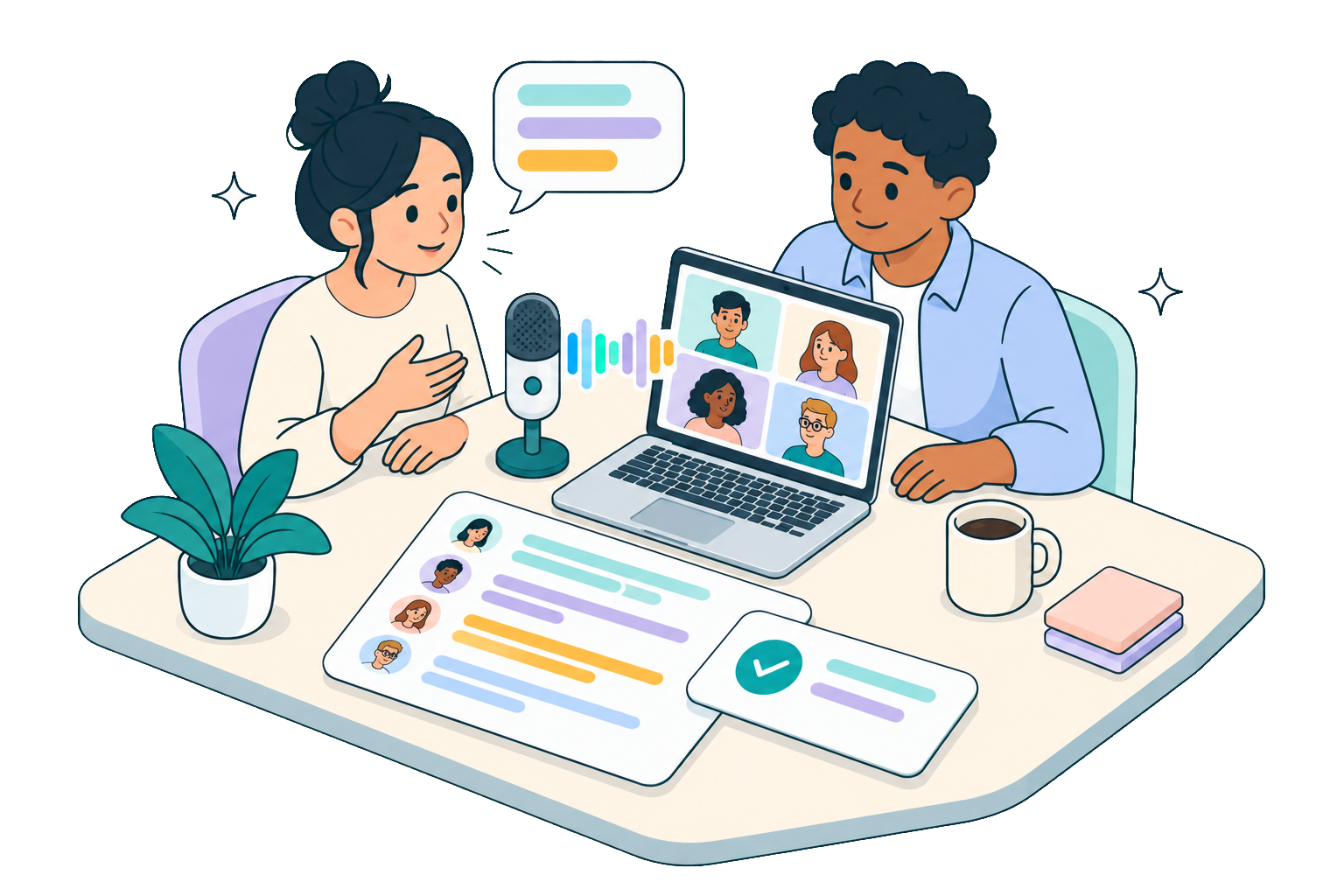
Kalima captures the sound playing on your computer and turns Google Meet calls into a live transcript with separate speakers. No bot ever joins the call.
Live translation and AI summaries use the same audio. The transcript is ready when you hang up, and qualifying summaries finish shortly afterward.

Transcribe Google Meet without adding a bot to the call
Google Meet runs in your browser, so most transcription bots have to join as a visible participant before they can hear anyone. Kalima works differently. It captures the sound playing on your computer, so nothing new shows up in the participants panel and the call stays unchanged.
Capture happens locally on your computer, so a quick one-on-one, a large all-hands, and an external client call all work the same way. You decide when to start and stop. Tell the other participants before you start.
Why transcribing Google Meet calls is harder than it looks
Google Meet has a built-in transcript, but teams that rely on the written record keep hitting the same problems.
Built-in transcripts are gated and arrive late
Google Meet's native transcript is limited to certain Workspace plans. It is produced after the call ends and lands in Google Docs, so nothing appears live while people are still talking.
Bot-based tools show up in the participant list
Tools that join as a participant add an extra entry that guests and clients can see. It can feel intrusive and raise questions about who is actually in the room.
Browser audio makes web-only capture unreliable
Google Meet lives in a browser tab, so a web-only tool often hears just your microphone. It misses what everyone else says unless system audio is captured properly.
How to transcribe a Google Meet call with Kalima
The steps are the same whether you host the call or join as a guest: capture the sound playing on your computer, then follow the transcript as it appears.
Start a Kalima session before you open Meet
Open the Kalima desktop app and start a live session. On desktop, Kalima captures system audio, so it hears every participant on the call, not only your microphone.
Join your Google Meet call as usual
Open Meet in your browser and join the call normally. There is nothing to set up in Meet because Kalima is already capturing the sound playing on your computer, including each person's voice. With the Kalima extension for Chrome, Edge, or Brave, the desktop app notices the moment you join and offers to start the recording for you.
Read the transcript live and export when the call ends
The transcript builds in real time with speaker labels, and you can turn on live translation for multilingual calls. If the call lasts at least five minutes and contains enough speech, Kalima starts an AI summary automatically after processing finishes. You can also generate one manually, then export to SRT, VTT, PDF, JSON, or plain text.
What you get from bot-free Google Meet transcription
Capturing system audio locally, instead of joining the call as a participant, changes what your Meet transcript can do.
No extra name in the participants panel
Nothing joins the meeting, so the participants panel shows only the people who were invited. Because nobody sees Kalima, tell the others yourself that you are transcribing.
A live record from the first word
Watch who said what as the call happens, instead of waiting for a Google Docs transcript to be processed and shared later.
Works on any Meet call you can join
Capture is local, so you can transcribe calls you host, calls you are invited to, and calls on any Workspace plan. There is nothing to install in Google Workspace.
Feature fit for Google Meet
The jobs teams usually want a Google Meet transcript to do, and how Kalima covers them.
Before you record
Kalima runs on your own device, so nobody in the meeting sees it. That is exactly why you should announce it: tell everyone before you start and ask for their consent. If you use Kalima at work, agree on it with your data protection officer and, where there is one, your works council first.
Google Meet transcription questions
Common questions about transcribing Google Meet calls with Kalima.
Further reading
- ProductDesktop App
- GuideInstalling the Desktop App
- GuideCapturing Audio & Screen
- ComparisonKalima vs Tactiq
- BlogThe Google Meet Transcript Exists and You Still Cannot Open It
- BlogGoogle Meet Transcription Button Missing or Transcript Not Generated
- BlogWhich AI notetakers join your meeting, and which record on your own device
Related solutions
Transcribe your next Google Meet call
Start for free and get a live, translated transcript of your next call, with no bot in the meeting.