
Chapters for Long Recordings: Find the Part You Need Without Scrubbing
An hour of audio is hard to navigate when all you have is a seek bar. Kalima's AI summary now splits the recording into titled chapters, so you can see its parts and jump straight to the one you need.

You remember that the budget came up somewhere in the second half of the meeting. The recording is an hour long, and the seek bar gives you nothing but a line. So you click, listen for ten seconds, click again, and repeat until you land near the right minute.
Chapters fix that. When Kalima writes an AI summary of a session, it now also splits the recording into chapters in speaking order, each with a short title. The chapters appear on the audio player in the Studio, so the structure of the session is visible before you press play.
What you see in the player
- Gaps in the seek bar. A small gap in the waveform marks where one chapter ends and the next begins. Hover a chapter and its part of the waveform gets brighter.
- Title and time under the pointer. Move the mouse along the seek bar and a small label shows the chapter at that point together with the time.
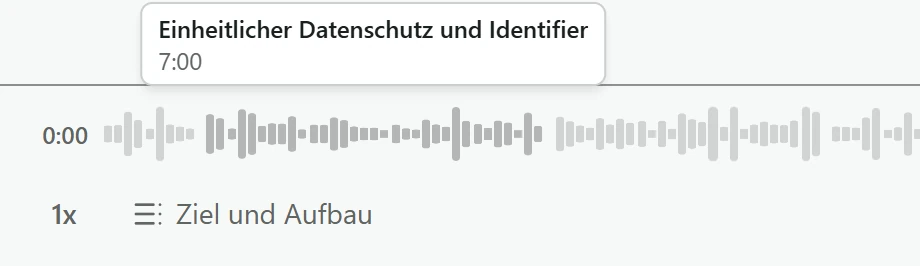

- The current chapter. Next to the speed control, a button names the chapter that is playing and updates as playback moves on.
- The full list. Click that button to open every chapter with its start time. The one that is playing is highlighted, and choosing another jumps playback to where it begins.
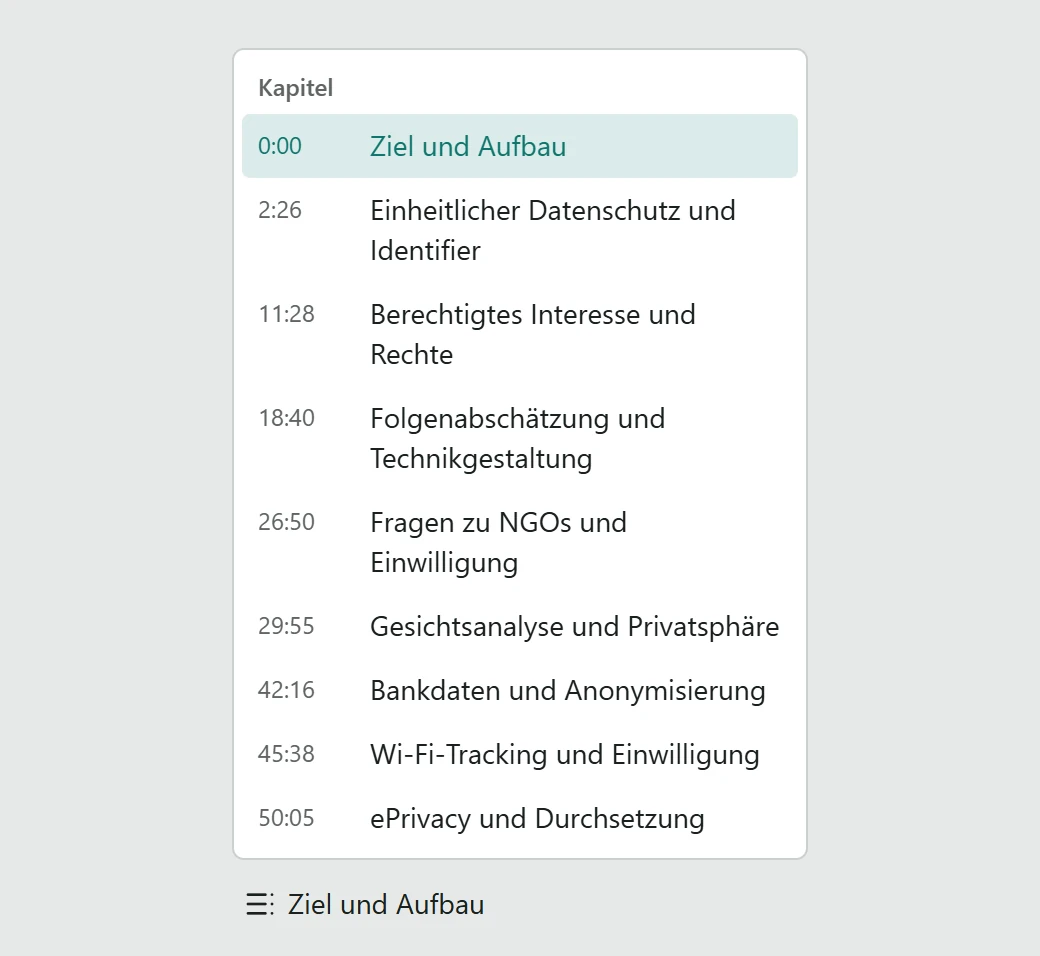
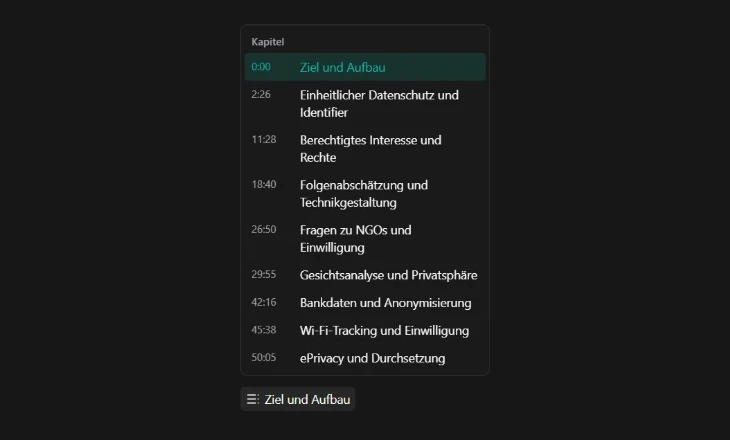
On phones there is no hover, so the progress bar is split into one piece per chapter instead. On very narrow screens the chapter button shows only its icon.
Where the chapters come from
Chapters are part of the summary, so you get them the same way you get a summary. Click Generate Summary in the Summary tab of the AI panel, or let Kalima do it for you: automatic summaries are on by default and start after a recording of at least five minutes with enough speech in it. Once the summary is saved, the chapters show up in the player without opening the Summary tab.
The chapter titles are written from the transcript, but their positions are not guessed. Kalima finds where each chapter's opening words were actually spoken and places the chapter at that moment in the audio. It searches in order, so a phrase like "okay, next point" that comes up five times in a meeting does not pull a late chapter back to the first time someone said it.
How many chapters you get
The number follows the length of the session. Kalima aims for roughly one chapter every five to six minutes of conversation, which comes to about ten for an hour-long meeting, with at least three and at most twenty. Two chapters that would start within ten seconds of each other are merged, because a sliver that narrow cannot be hovered or read.
Short sessions get no chapters at all. A ten-minute check-in rarely has parts worth navigating, and splitting it anyway would add noise to the player rather than structure.
Good to know
- Older summaries have no chapters yet. A summary created before this change keeps working as before. Regenerate it and the new version comes with chapters.
- Chapters live in the player, not in the summary views. Overview, Tasks, Topics and Markdown look the same as before. The chapters are there to move through the audio.
- Shared sessions. Someone you share a session with sees the chapters only if you also shared the summary. The titles are summary content, so they follow the same rule.
Where this helps most
Chapters earn their place on anything long you come back to. A lecture you review before an exam, split into its topics. A research interview where you need the answer to question four. A weekly meeting where only the part about your project concerns you. In each case you read the chapter list once and go straight to the part you need.
Open a session with a summary in the Studio and look at the seek bar. For the full list of player controls, see Playback, and for what else the summary contains, see AI Studio.
Try Kalima on your next call.
Live transcription and translation, no bot in the meeting. Free to start.
Keep reading.

Product5 min read
The Interactive Transcript: Click a Word to Hear It, Click the Audio to Read It
A transcript and a recording usually live side by side and ignore each other. In Kalima they move together: words light up as they are spoken, any word takes you to its moment in the audio, and any point on the timeline takes you to its place in the text.
Product4 min read
Live Captions That Keep Pace With the Conversation
Captions are only useful when they keep up. When words appear as they are spoken and highlight in step with the speaker, the whole room can follow along live.

Guides12 min read
Microsoft Teams Facilitator: what it needs, where it stops, and an alternative
Facilitator takes live notes, keeps the agenda and answers questions inside a Teams meeting. It also needs a Copilot licence, Loop, a scheduled meeting, one spoken language and no external guests. This guide lists every condition as of September 2026, the failures people report on Microsoft Q&A, and where Kalima fits instead.