
The Interactive Transcript: Click a Word to Hear It, Click the Audio to Read It
A transcript and a recording usually live side by side and ignore each other. In Kalima they move together: words light up as they are spoken, any word takes you to its moment in the audio, and any point on the timeline takes you to its place in the text.

Most transcription tools give you two separate things: a text and an audio file. You read a sentence, wonder whether it was really said that way, and then hunt for the spot in the recording by dragging the seek bar back and forth.
In Kalima the two are linked. The transcript knows when every word was spoken, so text and audio move together in both directions. We call it the interactive transcript. Here is what that means in practice, shown on a 53-minute workshop recording about the GDPR.
Read along while it plays
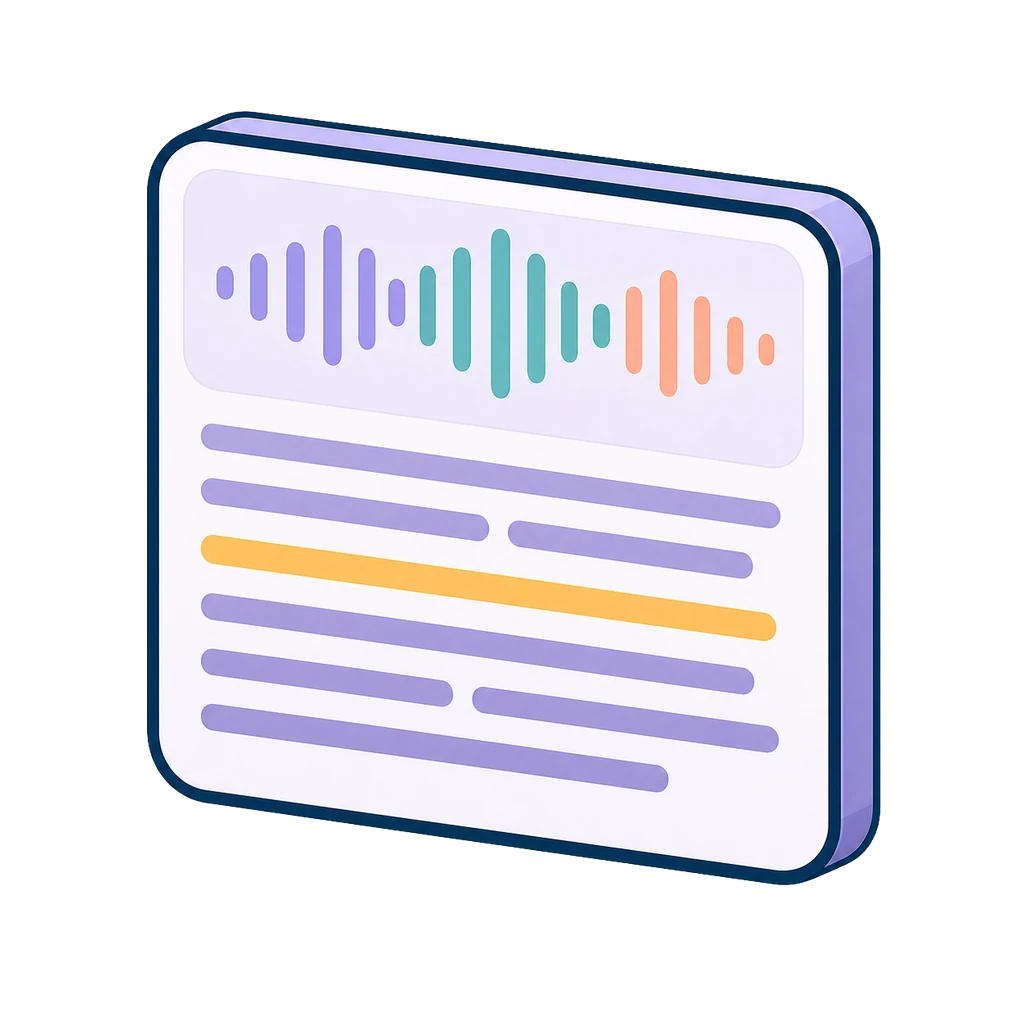
Press play, and a green box moves from word to word in step with the speaker. The words already spoken stay bright, the ones still to come are dimmed, so you see at a glance where you are in the sentence. Pause, and the whole text returns to full brightness so it is easy to read.
The box glides to the next word instead of jumping, so your eye can follow it without effort. That matters most when you are checking a transcript: you hear a word and see it at the same moment, and any mismatch stands out immediately.
Click a word, hear that moment
Every word in the transcript is a link into the recording. Click one, and playback jumps to exactly when it was spoken and carries on from there.
This turns the transcript into the fastest way to navigate a long recording. Find the passage you want by reading or with search, click the word, and you are listening to it. If a number or a name looks wrong, one click lets you hear what was actually said.
Click the timeline, and the text follows
It works the other way round too. Click anywhere on the waveform, and the transcript scrolls to that point so the passage being played sits in the middle of the view.
While playback runs, the transcript keeps following on its own. If you scroll away to read something else, Kalima leaves you alone instead of pulling you back mid-sentence. When you are done, Follow playback takes you back to the word being spoken.
Chapters: jump by topic, not by minute
The seek bar tells you where you are in time, but not what is being discussed. That is where chapters come in. When Kalima writes an AI summary, it also splits the recording into titled chapters. You see them as small gaps in the waveform, hovering shows the chapter under the pointer, and the chapter button next to the speed control opens the full list.
Choosing a chapter moves the audio to its start, and the transcript comes along. In the workshop above, the question about Wi-Fi tracking in shops is two clicks away instead of a guess somewhere after minute 40.
What it needs
- A session with audio. The interactive transcript works on sessions whose recording is available in Kalima.
- Word timing. Highlighting and click-to-jump use the time Kalima stores for every word. Without that timing, the text stays readable but is not linked to the audio.
- An AI summary for chapters. Chapters come from the summary. Automatic summaries are on by default for recordings of five minutes or more, and you can create one yourself at any time.
Where it helps
- Checking a transcript. Slow playback down to 0.5x or 0.75x, read along and fix what you hear differently.
- Quoting accurately. Before you put a sentence in a report or an article, click it and listen once more.
- Reviewing lectures and interviews. Jump to a chapter, read the passage, and click into the audio wherever the wording matters.
- Catching up on a meeting. Skim the transcript and listen only where tone or emphasis counts.
Open any session with audio in the Studio, press play and click a word. The full list of player controls is in the help article on playback.
Try Kalima on your next call.
Live transcription and translation, no bot in the meeting. Free to start.
Keep reading.

Product4 min read
Chapters for Long Recordings: Find the Part You Need Without Scrubbing
An hour of audio is hard to navigate when all you have is a seek bar. Kalima's AI summary now splits the recording into titled chapters, so you can see its parts and jump straight to the one you need.
Product4 min read
Live Captions That Keep Pace With the Conversation
Captions are only useful when they keep up. When words appear as they are spoken and highlight in step with the speaker, the whole room can follow along live.

Guides12 min read
Microsoft Teams Facilitator: what it needs, where it stops, and an alternative
Facilitator takes live notes, keeps the agenda and answers questions inside a Teams meeting. It also needs a Copilot licence, Loop, a scheduled meeting, one spoken language and no external guests. This guide lists every condition as of September 2026, the failures people report on Microsoft Q&A, and where Kalima fits instead.